Use your Board Preferences options in MyVIN to set up how your Message Boards look, to choose how you want to format your posts, and to control your notifications for discussions that you have subscribed to.
Jump to:
Try it!
Search and display options
Adjust the settings under this tab to control how far back searches go and how Message Board posts will appear for you.

Find Since: Sets the time frame to retrieve message board posts. For example: The default Find Since is set to 4 days. This allows you to scan the boards for new posts within a 4-day time frame.
Messages per Page: Sets the default number of messages to display on one page of a discussion. The default value for Messages Per Page is set to 20.
Discussion View Type: For the Classic Message Boards, this sets the display to show either the List View (where only the titles of discussions are listed), or the Expanded View (where every post added to the discussion during your Find Since time frame is displayed using the poster's name and date/time it was posted). The default option is List view.


On the Beta Message Boards, search results will always show in List View.

Order Discussion List By:
On the Classic Message Boards, you can choose from several different options for displaying how your discussions are ordered:
- Date Created: Order by oldest or newest created discussions first. In the example above, the discussions are ordered by oldest first,
- Discussion Title: Posts are listed alphabetically by title.
- Date updated: Order by discussions with the oldest or most recently added posts first
- Poster Name: Discussions will be ordered alphabetically by the name of the poster.
- Number of Posts Per Discussion: Discussions will be ordered numerically with those with the most posts appearing first.
Please Note: This feature is not yet available for the Beta Message Boards.
When clicking on image in post: By default, images open outside of Presenter (VIN's image slideshow viewer), without Presenter's slideshow functions. This setting allows you to choose whether clicking on message board images will open in the Presenter window.
Images displayed in board post: If you have a slower connection, you might want to only open images you are interested in viewing instead of having all the images load automatically. If you choose Display Image on Click, images posted within a discussion will only display when you click on them directly.

Discussion Viewer Font Size: You can choose from eight different font sizes. The default setting font size setting is 10-point.

Always show Archived Boards: Some older discussions are archived. While you can still read them, you will not be able to add to them. If you choose, you may exclude these from your Message Board viewing.
ListServe Digest Email: ListServe is a way to participate in discussions via email without logging into the Message Boards. If you check this setting, you will receive a daily summary of VIN ListServe emails.
Quote by Default: Open the quote area automatically when a reply post window is opened (see Quoting from other posts).
Show Pre-Selected Filter Warnings: On the Classic Message Boards, you can select Find in All 23 Boards or search within a specific Board such as Vet-to-Vet or AEMV Rounds. This setting will automatically remind you if you have limited your message board viewing to specific message boards.
Auto Collapse Header in Discussion Viewer (Desktop only): When viewing a thread in the Discussion Viewer on a desktop computer, the header will automatically collapse and expand when you scroll.
Allow Partial Message Loading: When viewing a thread in the Discussion Viewer, a limited number of messages will show when the page first loads. After the page loads, the rest of the messages (based on your paging preferences) will appear dynamically.
Enable video looping on playback: This allows videos to automatically restart and repeat without stopping.
Recent 20: If there are no new message board discussions that match your search in the time frame you have selected, the most recently added or updated message board discussions will be displayed.
Back to top
Posting Options
Adjust the settings under this tab to control the behavior of your posts on the Message Boards. See descriptions of each item below.

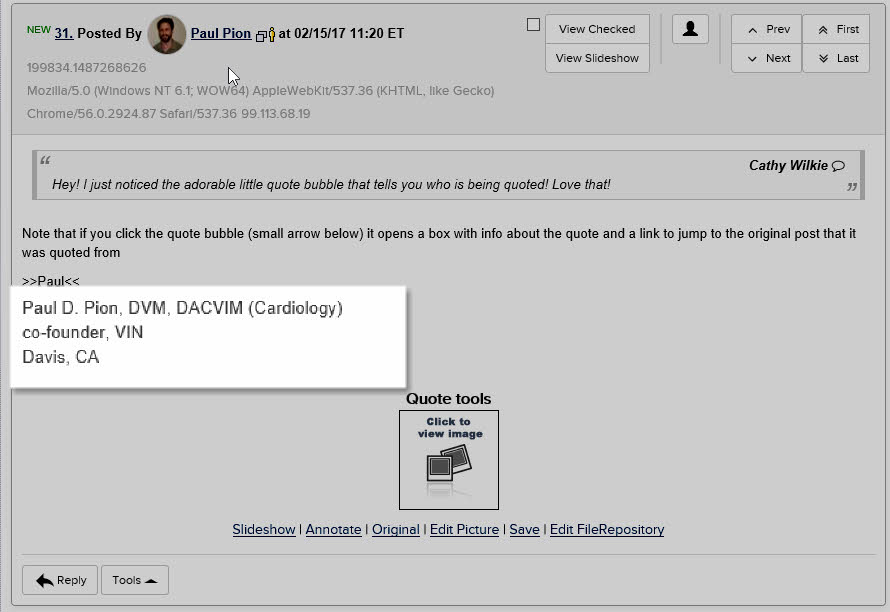
Append My Signature: Add a personal touch to your posts with a custom signature. If you choose to append your signature, it will automatically be added to each post, as in the example below. For more information on creating signatures, see Signature.
Preview All Messages before posting: Get a preview of your post to see how it will appear within the discussion before posting it to the message boards.
Preview Messages when image/file attached: If you don't want to preview every post you make but want to confirm that your images/files are correct, you can choose to preview only posts that include images/files.
Add Posts to My Discussions: Do you sometimes forget which folder/thread you posted in or what you titled your discussion? For a quick and easy way to get back to your posts without having to search through folders, check the box next to Add to MyDiscussions (see How to use MyDiscussions)
Disable Message Posted Confirmation: Each time you post, you will see a pop-up telling you that your message was posted successfully. If you prefer not to see this message, check the box to disable the “Message Posted” pop-up.

Subscription options
Adjust these settings to select which type of discussions you'd like to be automatically subscribed to and how you'd like to be notified when those discussions are added or updated. See descriptions of each item below.
You can find more information on subscriptions in Message Boards Subscriptions.

Enable Email Message subscription for Boards: When a message board discussion that you are subscribed to is updated, a notification will be sent to your primary email address.
Enable Text Messaging subscription for Boards: When a message board discussion that you are subscribed to is updated, a notification will be sent to your primary mobile phone number.
Automatic Subscription Options: Select when to be automatically subscribed to a discussion thread:
- When making a new post in a medical folder (specialty folders in the Vet-to-Vet message boards)
- When making a new post in any folder
- When making a new post in selected folders (click the selected link to see which folders have been automatically selected)
- When replying in a medical folder
- When replying in any folder
- When replying in selected folders